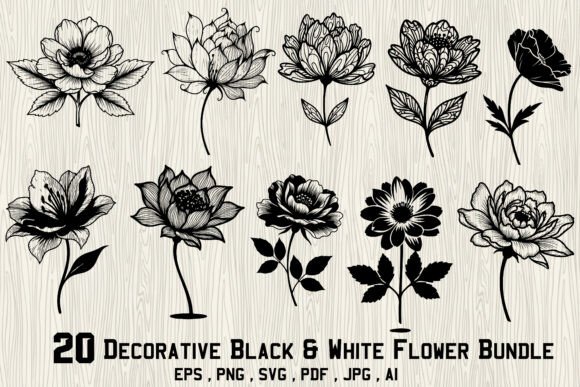
Decorative Black White Flower Bundle: A Practical Guide for Designers and Crafters
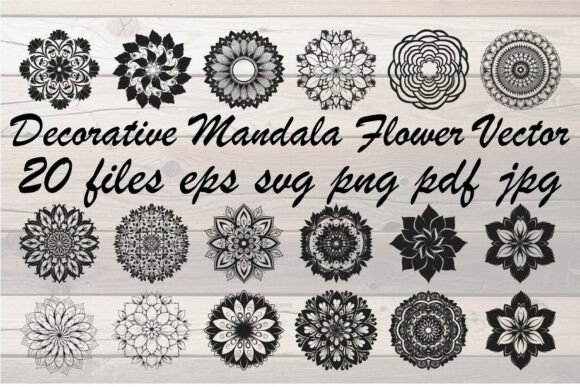
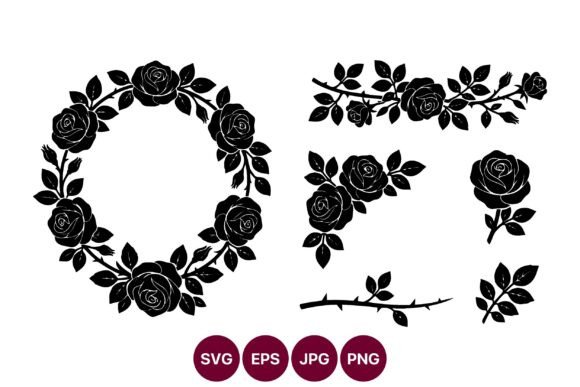
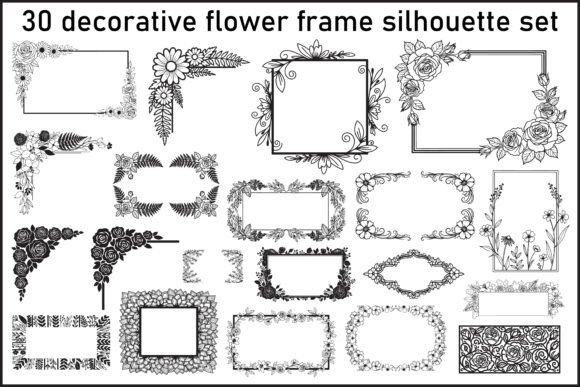
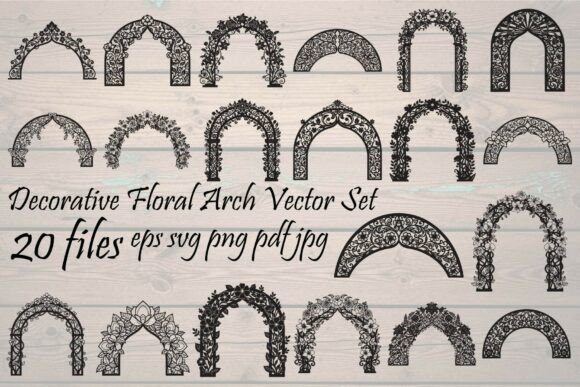
The appeal of monochrome botanical art lies in its versatility. Whether you are designing a minimalist wedding invitation or creating intricate laser-cut decor, the Decorative Black White Flower Bundle offers a foundation of twenty elegant floral designs that bridge the gap between modern simplicity and vintage charm. However, owning a collection of high-quality assets is only half the battle. Many creators stumble not because the files are inadequate, but because they misunderstand how to leverage vector formats effectively or fail to prepare their projects for specific production methods.
This guide explores common pitfalls when working with line art bundles and provides actionable advice to ensure your final products meet professional standards. By understanding the technical nuances of these files, you can avoid costly reprints and inefficient workflows.
Misunderstanding Vector vs. Raster Formats
One of the most frequent mistakes beginners make is treating all digital files as interchangeable. The Decorative Black White Flower Bundle includes EPS, SVG, AI, PDF, PNG, and JPG files. While this variety is generous, using the wrong format for the wrong task can severely compromise quality.
For instance, if you are sending a design to a large-format printer for a wall mural, using a JPG or PNG file may result in pixelation when scaled up. These raster images have fixed resolutions. In contrast, the vector files (EPS, SVG, AI) use mathematical paths, allowing you to resize the floral elements from the size of a postage stamp to a billboard without any loss in sharpness.
The Correction: Always start your design process with the vector source files. Use Adobe Illustrator, CorelDRAW, or Inkscape to manipulate the AI, EPS, or SVG files. Reserve the PNG and JPG formats for web use, social media previews, or sublimation printing where the image size remains static and within the provided resolution limits.
Overlooking Node Complexity in Cutting Projects
If you are a crafter using a Cricut or Silhouette machine, you might assume that any SVG file is ready to cut immediately. This is a dangerous assumption. Detailed line art flowers often contain hundreds of anchor points and intricate curves. If you send a highly complex vector directly to your cutting software without optimization, the machine may struggle, leading to jagged edges, blade drag, or prolonged cutting times.
Furthermore, some users forget to "weld" or "union" overlapping paths. In decorative floral designs, petals often overlap. If these are left as separate objects, your cutting machine will attempt to cut each individual line, potentially tearing delicate paper or vinyl.
The Better Approach: Before cutting, simplify the path where possible without losing the aesthetic detail. Use the "simplify" or "smooth" functions in your vector software to reduce unnecessary nodes. Ensure that all parts of a single flower are merged into one compound path if they are meant to be cut from a single piece of material. Test cut on scrap material first to gauge the machine’s handling of the intricate ornamental elements.
Neglecting Line Weight for Different Applications
The Decorative Black White Flower Bundle features detailed line art. While this looks stunning on screen, it can present challenges in physical production. A common oversight is failing to adjust line weights based on the medium. For example, a hairline stroke that looks crisp on a digital mockup might disappear entirely when printed on textured cardstock or engraved into wood.
Conversely, if you are using these designs for embroidery digitizing, lines that are too close together can cause thread bunching. Users often skip the step of testing how the design translates to the physical material, resulting in a product that looks cluttered or illegible.
Practical Advice: Always scale your line weight relative to the output size. For laser engraving, thicker lines often produce cleaner burns. For small-scale jewelry or stickers, ensure there is enough negative space between petals to prevent ink bleeding or cutting errors. Preview your design at 100% zoom to check for clarity before finalizing.
Ignoring Licensing and Commercial Use Contexts
Many entrepreneurs purchase design bundles with the intention of selling print-on-demand products, such as mugs, t-shirts, or posters. A critical error is assuming that purchasing the bundle grants unlimited rights to use the artwork as-is. Most standard licenses allow you to incorporate the elements into a new, unique design, but they rarely permit reselling the raw files or using them as standalone clipart.
Additionally, some creators fail to differentiate their products. Using the same popular floral bundle as thousands of other sellers can dilute your brand identity. If your competitor is using the exact same black and white rose on their packaging, your brand loses its distinctiveness.
The Strategic Move: Customize the elements. Combine different flowers from the bundle, add typography, or integrate other graphic elements to create a composite design. This not only adheres to typical licensing agreements but also adds value to your end product. Always read the specific license file included in the download to understand restrictions regarding trademarking or mass production limits.
Color Management and Print Readiness
Since this is a black and white collection, users often assume color management is irrelevant. This is incorrect. "Black" in digital design can vary significantly. Screen blacks (RGB) look different than print blacks (CMYK). If you are preparing files for professional offset printing, using pure RGB black can result in muddy grays or unexpected color casts.
Moreover, when using the PDF files included in the Decorative Black White Flower Bundle, ensure that the document color profile matches your printer’s requirements. A mismatch here can lead to prints that look washed out or lack the deep contrast expected from high-contrast line art.
Checklist for Print:
- Convert colors to CMYK if sending to a professional print shop.
- Ensure black elements are set to 100% K (Key/Black) rather than rich black (C,M,Y,K mix) for fine lines, to prevent registration issues.
- Use the provided PDF files for quick proofs, but rely on the vector files for final press-ready adjustments.
Maximizing Efficiency with File Organization
With twenty designs and multiple file formats, the download folder can quickly become chaotic. A common productivity killer is spending excessive time searching for the right version of a flower. Some users keep all files in one directory, making it difficult to distinguish between the editable AI source and the flattened JPG.
Organization Tip: Create a standardized folder structure immediately after downloading. Separate folders for "Vectors," "Raster," and "Print-Ready" can save hours over the course of a project. Rename files descriptively if the default names are generic. This small upfront investment in organization pays dividends when you are working under tight deadlines.
In conclusion, the Decorative Black White Flower Bundle is a powerful resource for those who appreciate timeless floral aesthetics. By respecting the technical differences between file formats, optimizing for your specific production method, and customizing designs to maintain brand uniqueness, you can elevate your projects from amateur to professional. Avoid the common shortcuts, pay attention to the details of line weight and color profiles, and you will find these assets to be indispensable tools in your creative arsenal.